
Sales
Leads
A lead is someone who might become a customer but hasn't been qualified yet. Leads live separately from People and Companies so your contact records stay clean — a lead only becomes a Person when you convert it.
Every lead belongs to exactly one organization, and email is unique per organization. Submitting the same email address twice updates the existing lead rather than creating a duplicate.
Creating leads#
Leads arrive four ways:
| Route | How it works |
|---|---|
| Manually | Add Lead on the Leads page. |
| Web forms | A published form creates a lead on submission, using the field mappings you set in the form builder. |
| Automations | An automation step can create a lead; the lead records which automation produced it. |
| API | POST /v2/org/:orgSlug/crm/leads |
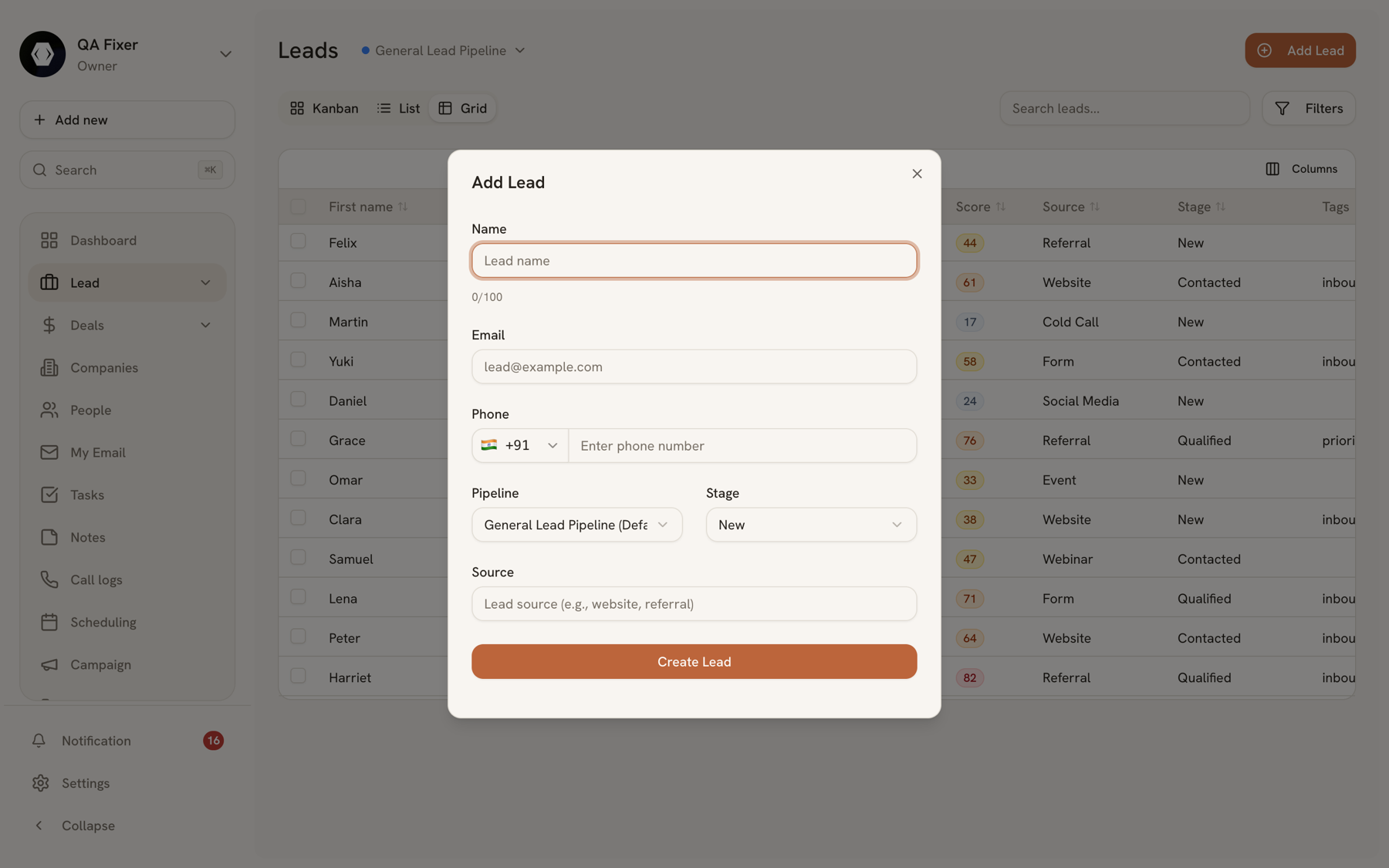
The Add Lead dialog asks for a name, email, phone, pipeline, stage, and source. Only email is strictly required — but the more you fill in, the higher the lead scores, and a phone number alone is worth 8 points.
Pipeline stages#
Leads move through a lead pipeline — a named, ordered set of stages your team defines. New organizations start with General Lead Pipeline, and you can rename, reorder, recolor, or add stages to match how your team actually sells.
Stage is the main thing you'll work with: it's the column in Kanban, a filterable column in the list, and what you change when a lead progresses. Because stages are yours to define, the stage names in your account won't match any example here.
Lead scoring#
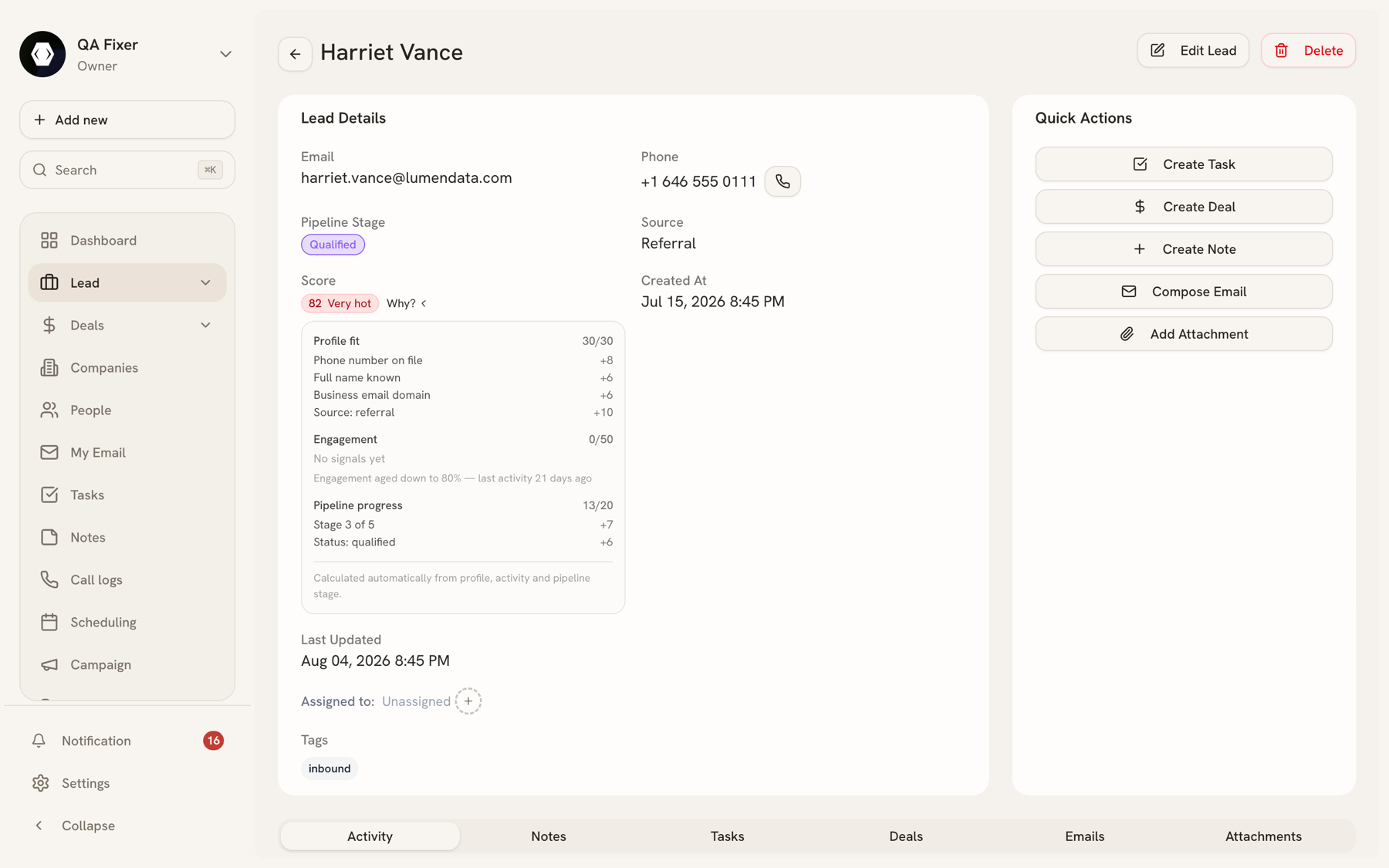
Every lead carries a score from 0 to 100 that answers "how warm is this?". The score is additive and always explainable — open a lead to see the exact breakdown behind its number.
Score = Profile fit + (Engagement × recency decay) + Pipeline progress
| Component | Max | What it measures |
|---|---|---|
| Profile fit | 30 | Who they are — contactability and where they came from. Fixed at capture. |
| Engagement | 50 | What they did. The strongest buying signal, and the only part that decays. |
| Pipeline progress | 20 | How far a human has moved them through the pipeline. |
Profile fit rewards a phone number (8), both names (6), and a business email domain rather than Gmail or Outlook (6), plus source quality — a referral is worth 10, website 8, social 5. Cold outreach scores 0: someone who asked to be contacted is worth more than someone who was found.
Engagement counts behavior, with a per-signal cap so one noisy channel can't dominate:
| Signal | Points | Cap |
|---|---|---|
| Form submission | 15 | 15 |
| Deal created | 15 | 15 |
| Inbound email (they replied) | 9 | 18 |
| Completed call | 6 | 12 |
| Completed task | 3 | 9 |
| Note added | 2 | 6 |
| Outbound email (you wrote) | 2 | 6 |
Outbound email is deliberately weighted low — it's effort spent, not interest shown.
Recency decay multiplies the engagement subtotal only: full value within 7 days, ×0.8 within 30, ×0.5 within 90, ×0.25 beyond. Profile fit and pipeline progress are facts that don't go stale; enthusiasm does.
Scores land in four bands: Cold (0–29), Warm (30–59), Hot (60–79), Very hot (80–100).
Working the list#
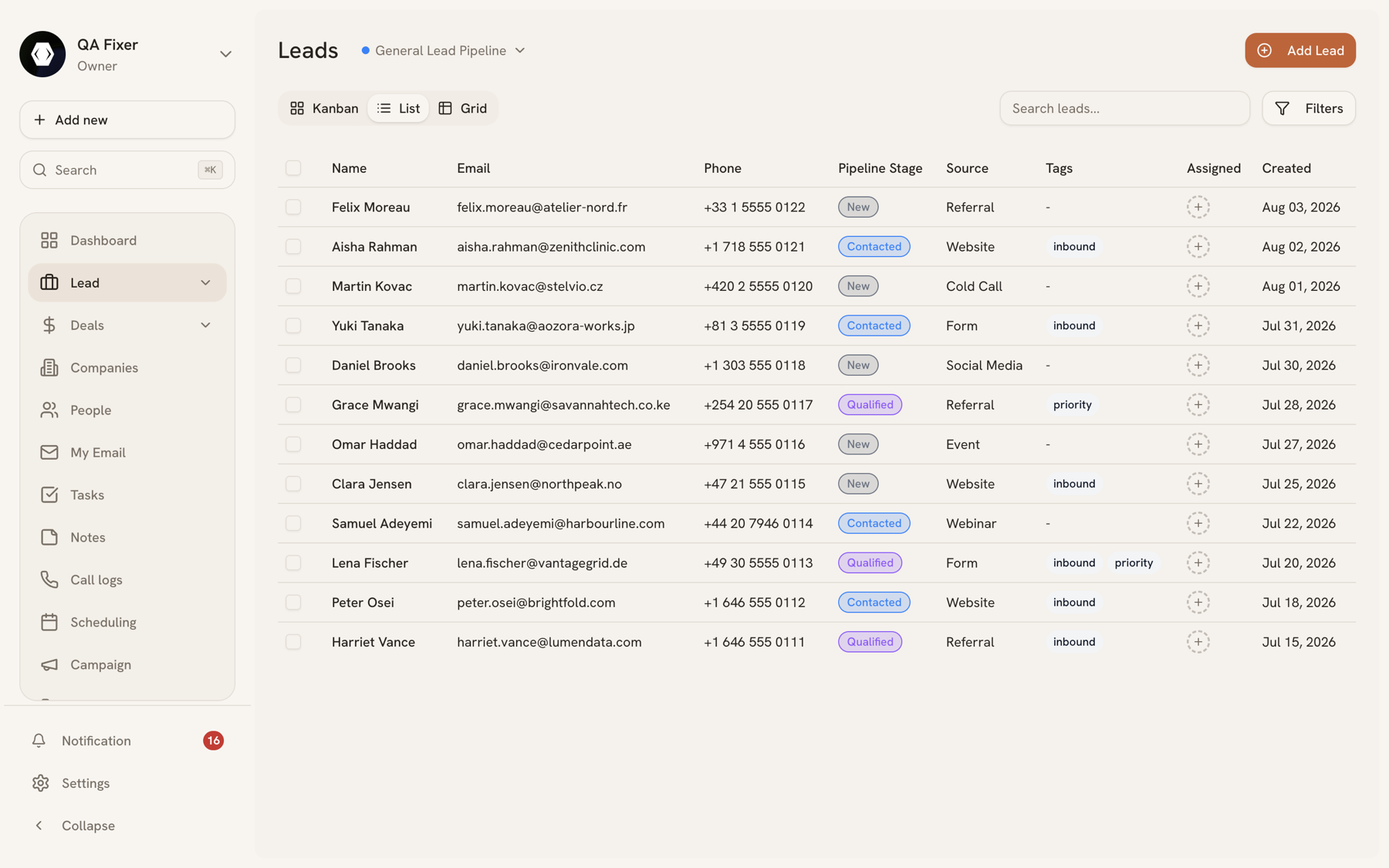
The Leads page offers three views:
- Kanban — leads as cards in stage columns
- List — the standard table with pagination and bulk selection
- Grid — a dense spreadsheet view with inline editing, resizable columns, and a column picker
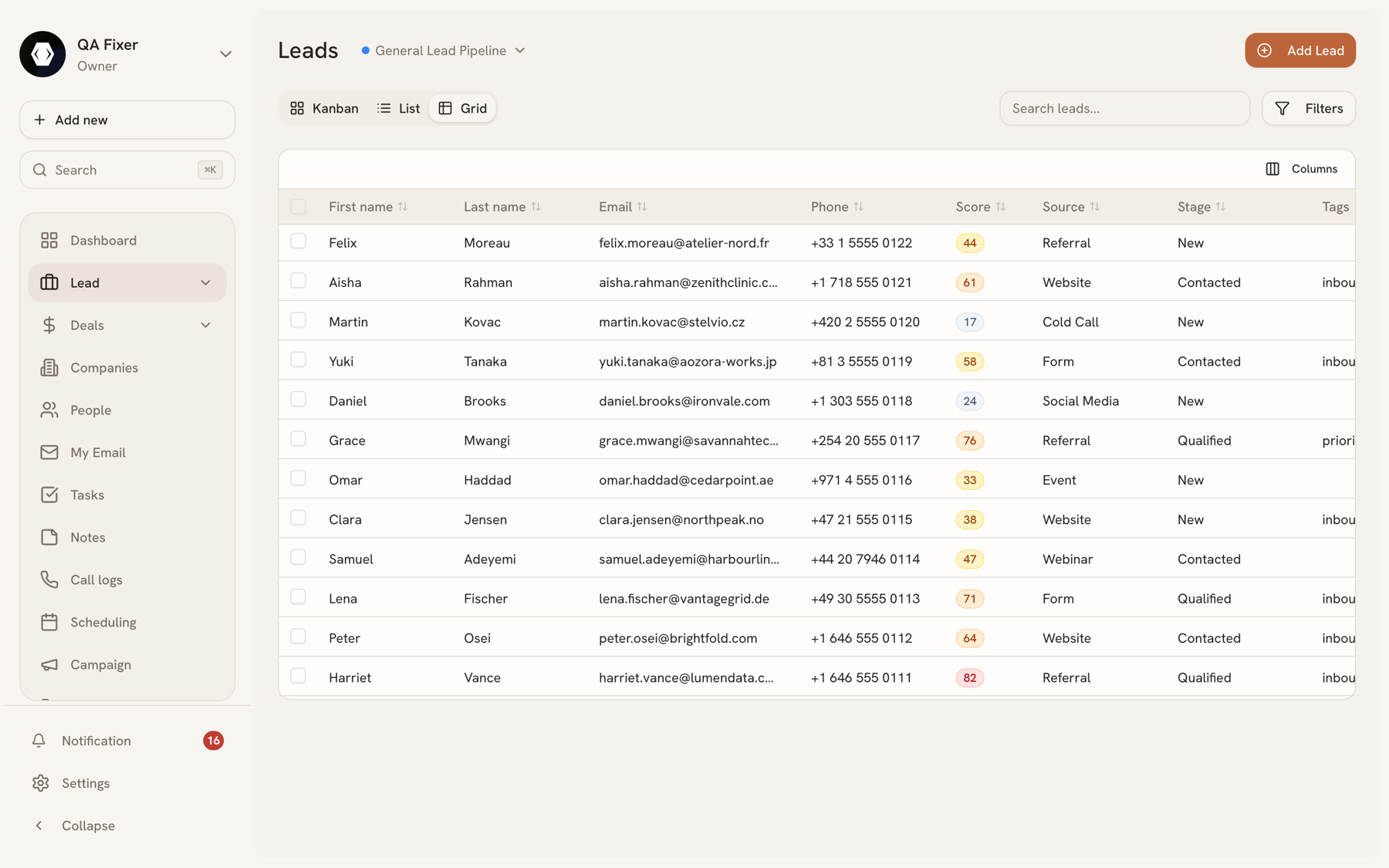
Search matches across leads, and filters narrow by source, tags, and date range. Sort by created date, updated date, name, email, or score.
Select multiple leads to delete them or assign tags in bulk.
The lead detail page#
Opening a lead shows its profile alongside six tabs:
- Activity — the timeline of what's happened
- Notes — free-text notes from the team
- Tasks — follow-up work linked to this lead
- Deals — deals created from this lead
- Emails — correspondence
- Attachments — files
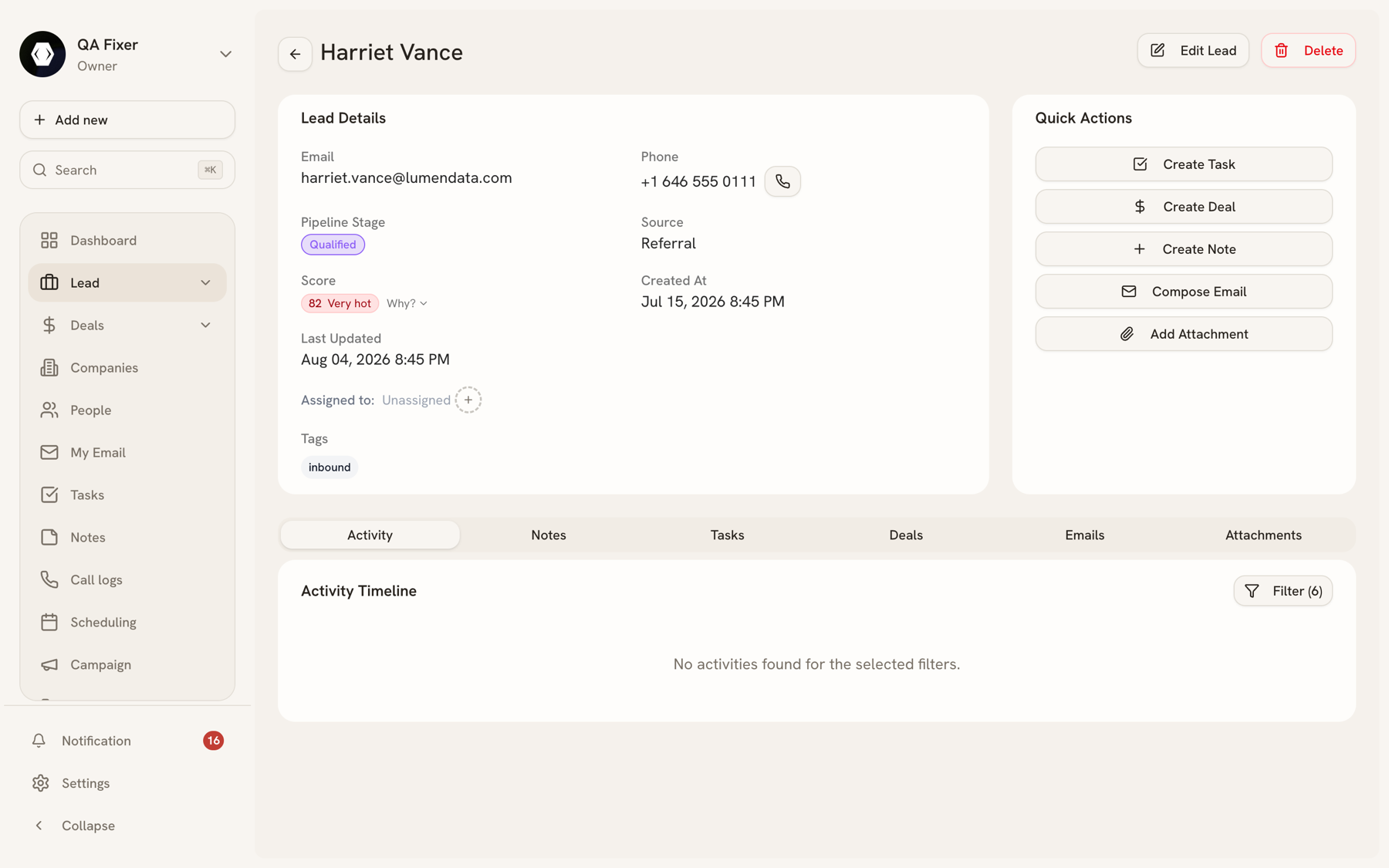
Leads can be assigned to a team member and tagged freely — both are edited from the lead's detail page.
Turning a lead into a deal#
When a lead is real, open it and use Create Deal in Quick Actions. The dialog collects the deal title, description, value, pipeline, stage, probability, and expected close date — and pre-fills Related To: Lead with this lead, so the new deal stays linked to where it came from.
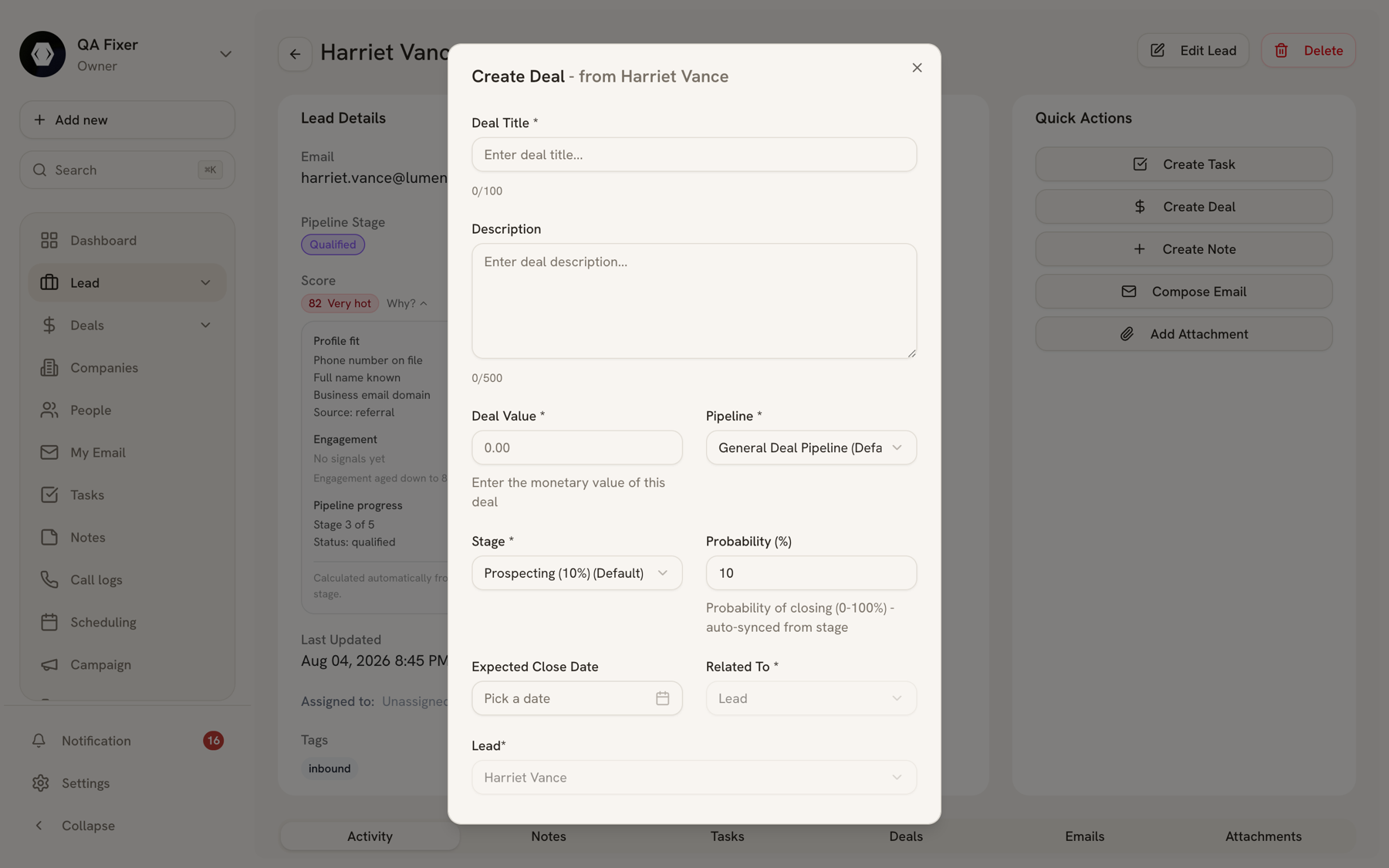
The deal then appears under the lead's Deals tab. The lead itself is not deleted or changed — it stays as the record of origin.
Permissions#
Every lead query is scoped to the organization in the URL — members of one organization cannot see, search, or bulk-edit another organization's leads.
Last updated 2026-08-14